ICR blocks
What an ICR block is, how to see the blocks on the plot, and where each block's figures are.
An ICR block is one inverter control room (ICR) and the tables wired to it. A table belongs to the block of the control room that its string inverter — or its string monitoring box (SMB), in a central-inverter design — feeds. The block is therefore an electrical grouping, and it is the unit a block transformer, a cable schedule and a construction package are usually organised around.
Every output that talks about blocks uses that definition: the ICR blocks layer, the Summary view's By block sheet, the block sheets of the drawing set and the KMZ. The blocks are known once the inverters are placed, which happens on every Generate Layout; before that a block has no tables.
Blocks and the placement groups
The control rooms are placed first, each at the centre of a group of tables of near-equal capacity. See Inverter control rooms. The inverters or SMBs are then assigned to the rooms, each starting on the room nearest to it along the plant and moving to a neighbouring room only when that room is full. So a block — the tables wired to a room — is close to the group the room was placed for, but not identical to it: along the edge between two groups a few tables can end up wired to the neighbouring room. How devices are assigned is on Cable routing.
Seeing the blocks
Open Layers ▾ in the Layout view's tools and switch ICR blocks on. Each block is filled in its own colour and outlined, and labelled with its name. The row is off by default and greyed out until the inverters are placed; it stays available while the layout is out of date. The layer only colours: a click on a block does nothing.
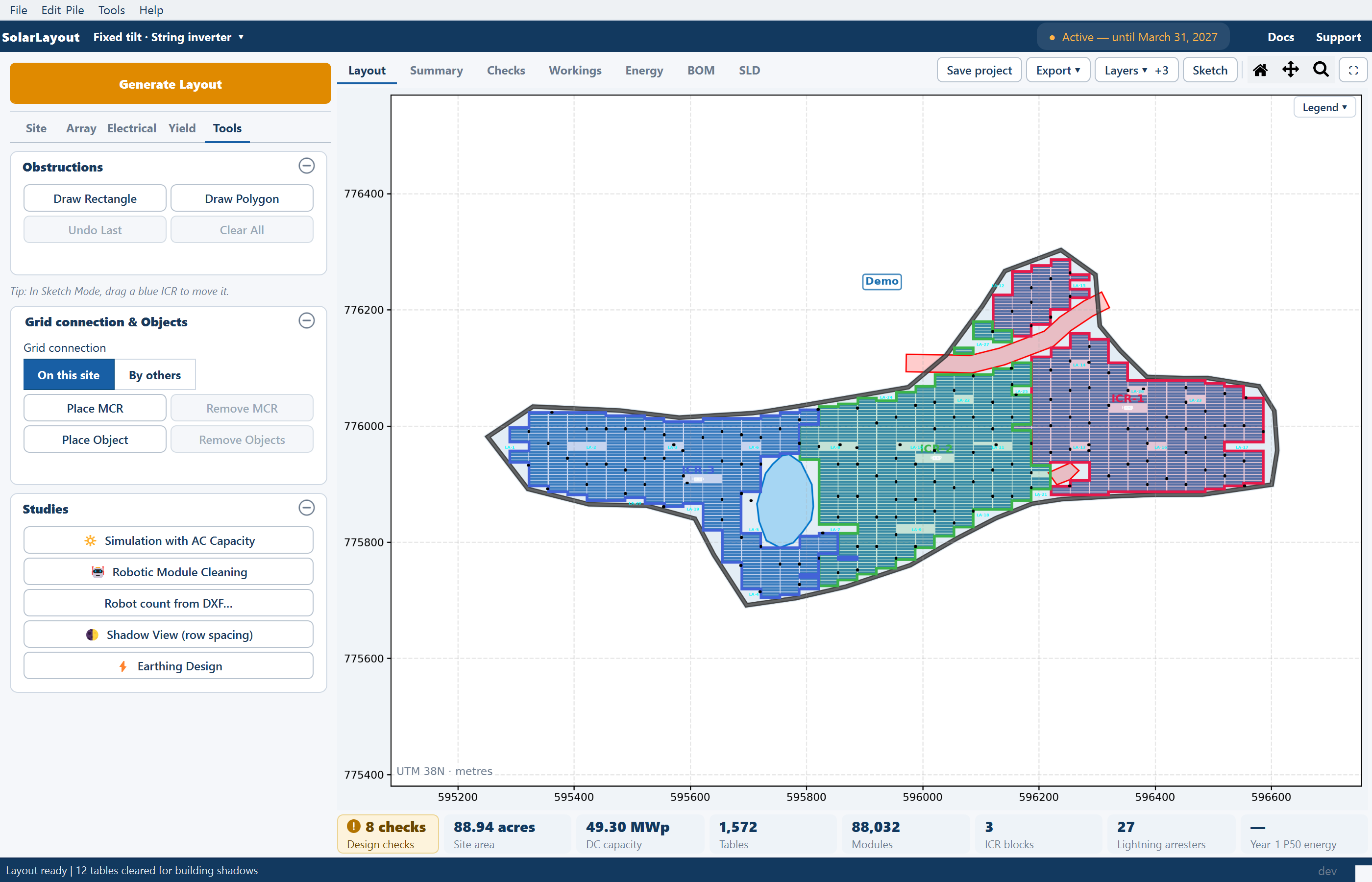
- Names. Blocks are named ICR-1, ICR-2 and so on, after the number of their control room in the plant.
- Outlines. A block's outline hugs its tables, closes the gaps inside the block, keeps off the other blocks and is clipped to the plant boundary. A block split by an obstruction or a water body can therefore have several pieces.
- Colours. The colours cycle through a fixed set, so distant blocks can share one.
The layer is the quickest way to see how the plant is wired: which tables feed which building, and whether a block reaches across a corridor or a pond to pick up tables the neighbouring room would serve more directly.
Each block's figures
Open the Summary view on By block, where it opens by default. Each block has a column, followed by Shared and Total. The rows give its DC capacity and share of the plant, area, tables, modules and piles; its inverters and ACCBs, or SMBs and central inverters; its AC capacity and DC / AC ratio; its transformers and their load; its arresters; and its cable lengths. Clicking a block's head fits the Layout view to its outline. Every row is on Summary view.
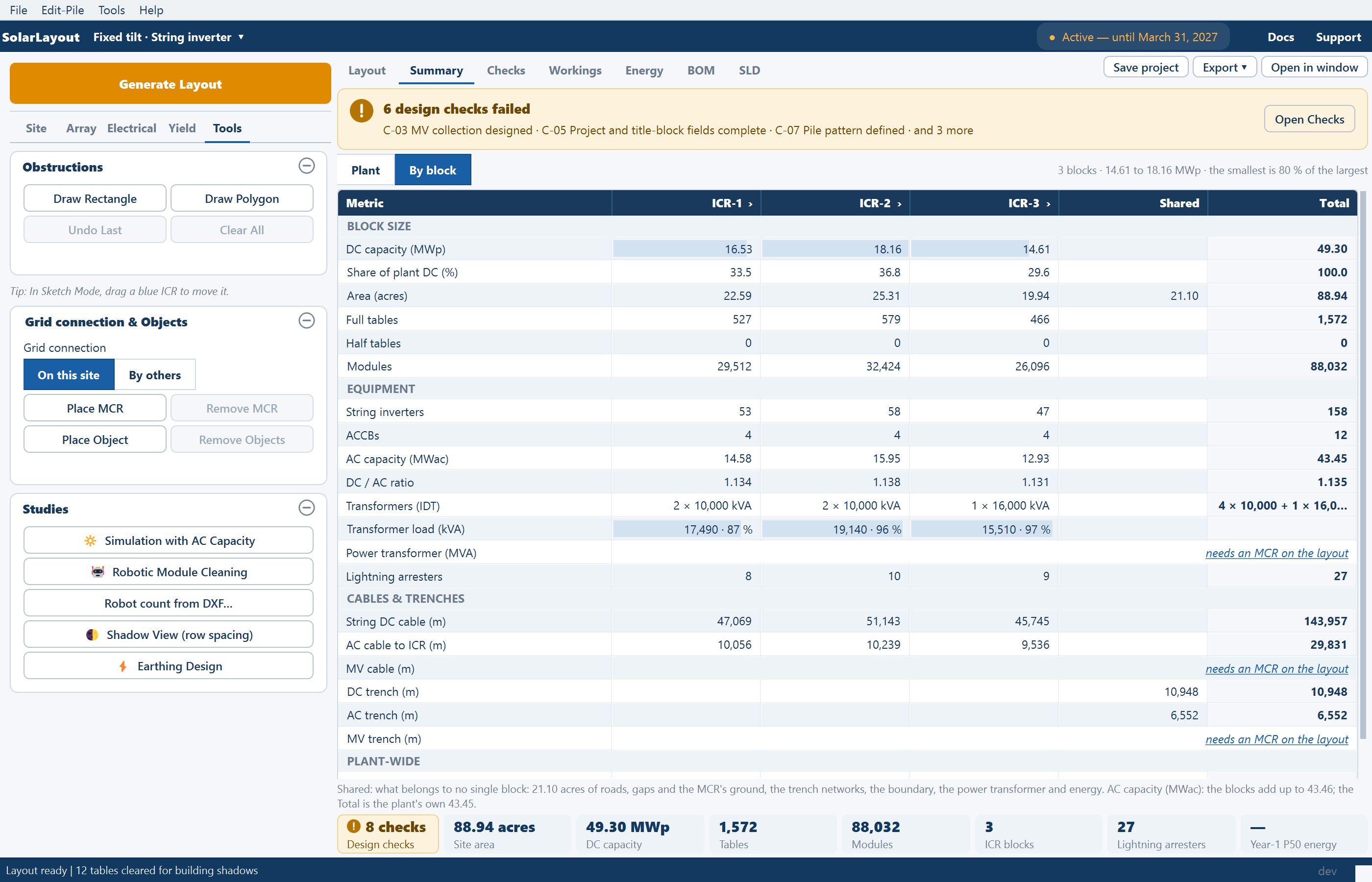
Energy is not split per block: yield is calculated for the whole plant, in the Energy view. The Share of plant DC (%) row is the figure to scale by if you need a block's share.
On a site where more than one plot has control rooms, block names carry the plot's number, P1-ICR-1, P2-ICR-1 and so on, so that blocks from different plots stay apart. See Multi-plot sites.
Blocks in the deliverables
The package works block by block:
- The drawing set has block sheets at one scale, with match lines between tiles, then the pile layout and earthing sheets on the same tiles. See The drawing set.
- The design report has a block schedule. See The design report.
- The KMZ has one folder per block, with its outline, its tables, its devices and its ICR, and the figures in the outline's pop-up. See Schedules and KMZ.
- The BOM has a By block view. See Bill of materials.
Where to go next
Inverter control rooms
What an inverter control room is, how many the plant gets, where they are placed, the tables they clear, and how to move one by hand.
Lightning arresters
How arresters are placed on a coverage grid, the ground each mast keeps clear, the settings behind them, and where they show up.