Design checks
The Checks view — when the checks run, how to read a row, Fix and Show on layout, accepting a finding, the badges on the plot, and where results go.
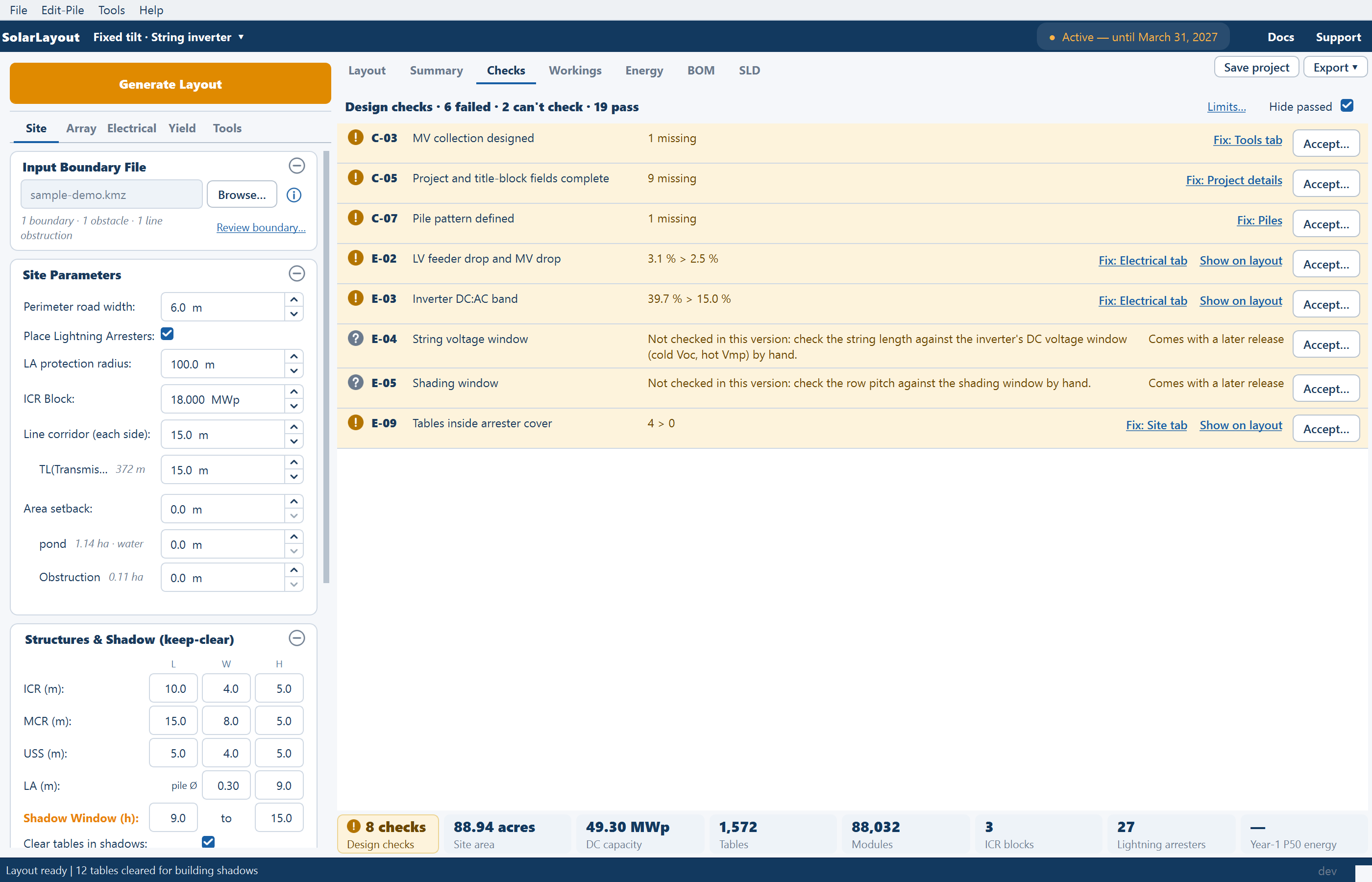
The Checks view tests the generated design against 29 checks and lists the result of each. A check says whether the numbers agree, whether the design is complete, and whether it stays inside the engineering limits. It describes the design as it stands and never blocks anything: generating, calculating energy, saving, exporting and issuing a revision all work whatever the checks say.
Every check, what it tests and what to do about it is on the design checks reference. This page is how to work with the view.
Getting there
- The Checks tab (Ctrl+3).
- The Design checks chip in the row of plant chips.
- Open Checks on the line above the Summary sheet.
The same list appears on the right of the Export deliverables window, for reading while you prepare a package. See The deliverables window.
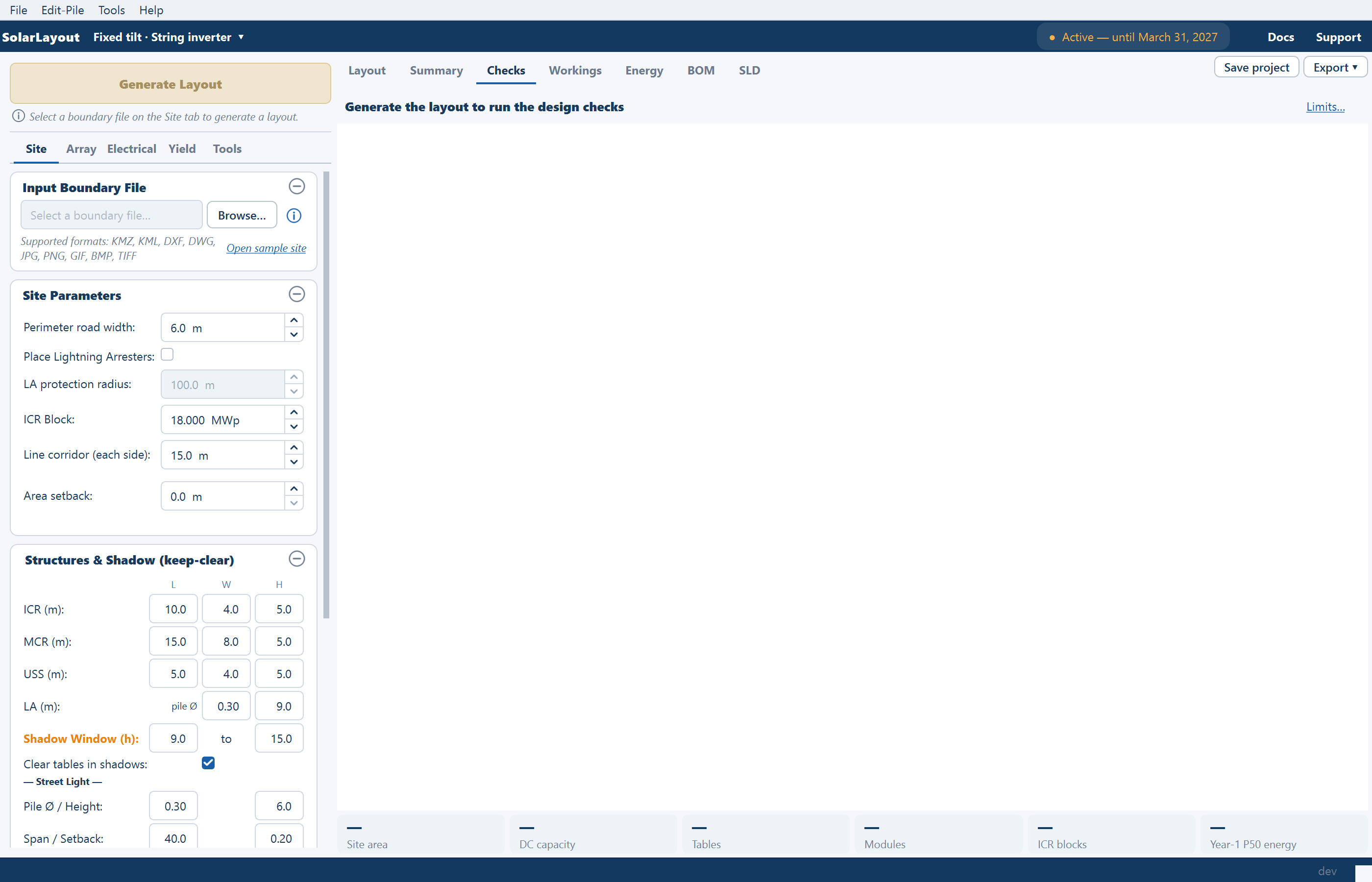
Before a layout exists the view reads "Generate the layout to run the design checks".
When the checks run
The checks run by themselves in the background, whenever the summary refreshes and whenever a setting that affects them changes. After Generate Layout they wait until the plant has been drawn. There is no Run button, except Run again when a run failed; the header then reads "Checks didn't run: <reason>". While a run is going the header reads "Design checks · Checking…" and the last rows are greyed.
The header
A report's header counts the results: "Design checks · 6 failed · 9 can't check · 12 pass". The groups run in the order failed, can't check, to re-confirm, accepted, pass, and a group of none is left out. Checks that do not apply to this design are not counted.
| Control | What it does |
|---|---|
| Limits… | Opens Advanced settings on Checks and limits, the limits the checks judge against. A note beside it reads "· N changed" when any differ from their defaults |
| Hide passed | On by default. Hides the rows that pass or do not apply; accepted rows stay. The choice is not saved with the project |
Reading a row
A row runs: symbol, ID, title, a one-line result, then what you can do about it. The rows are ordered open, to re-confirm, accepted, pass, not applicable, and within each by R, C, E and number. There are three families:
| Family | IDs | Asks |
|---|---|---|
| Reconciliation | R-01 to R-07 | Do two figures for the same thing agree? |
| Completeness | C-01 to C-07 | Is everything a package needs in the design? |
| Engineering | E-01 to E-15 | Is the design inside its limits? |
| Symbol | Means |
|---|---|
| Tick | Pass |
| Exclamation mark | Failed, or an accepted check whose result has changed and needs confirming |
| Grey question mark | Can't check: the check needs something first, or is done by hand |
| Grey tick | Accepted |
| None | Does not apply to this design |
The result reads as a comparison where there is a value and a limit — "3.0 % > 2.5 %" when failing, "0.00 ha (0.00 acres) ≤ 0.01 ha (0.02 acres)" when passing, "88,984 = 88,984" for a count that agrees — and otherwise as a count of findings, such as "3 > 0" or "9 missing". A can't-check row says what it needs, for example "Load the inverter file (OND) for the IDT loads."
Opening a row
Click a row to open it; one is open at a time. The detail gives the finding sentences with your design's figures, the basis of the check, "Affects: a, b and N more" (the first 20 named), "Not on the layout" when an open check has nothing to point at on the plan, and any acceptance line.
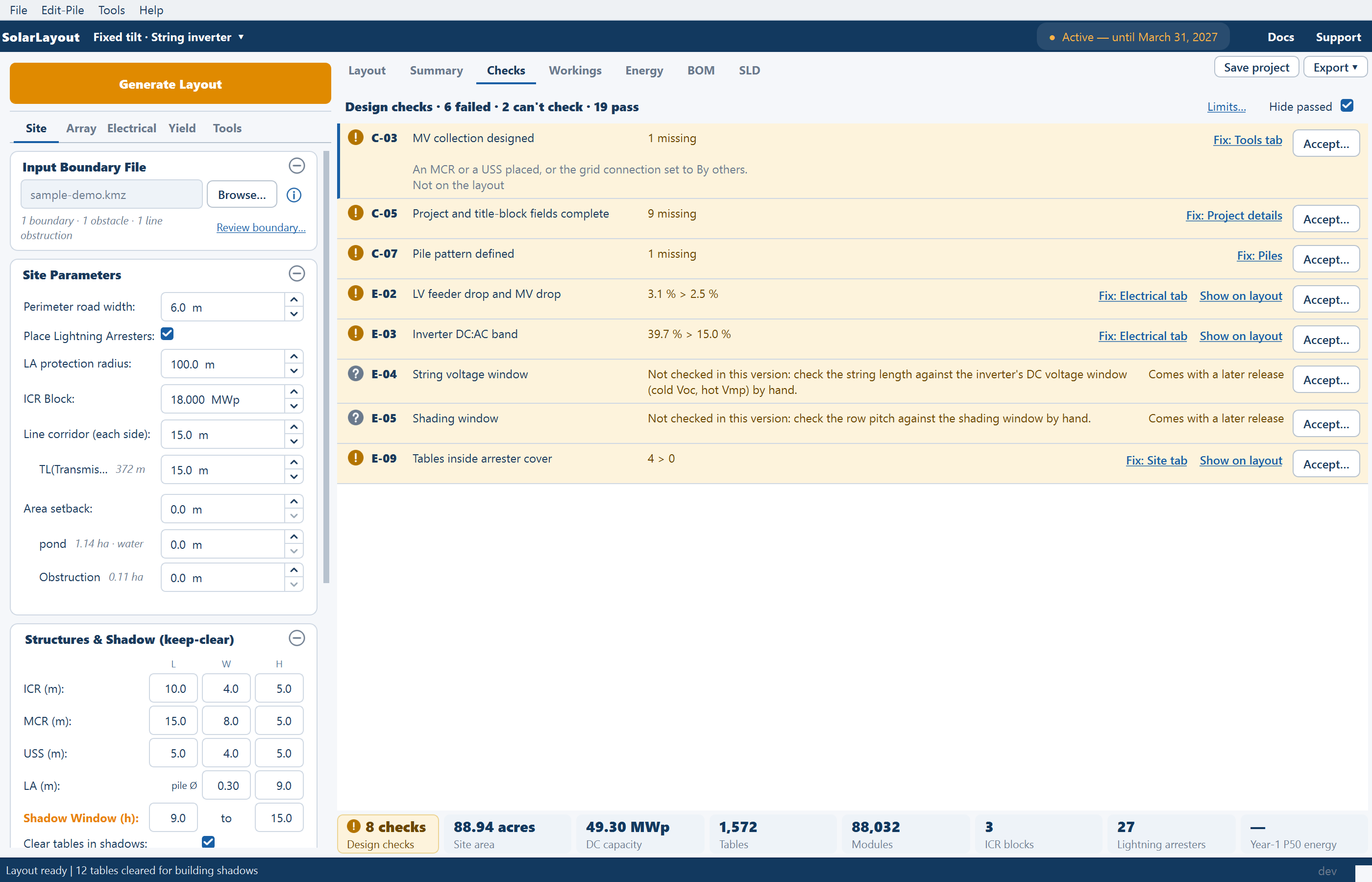
On a multi-plot site, a finding's sentence starts with the plot's name.
Fix and Show on layout
Fix links on an open row name where to go — Fix: Site tab, Fix: Electrical tab, Fix: Tools tab, Fix: Array tab — and they switch to the Layout view and show that stage tab. They go to the tab, not the field. Three go elsewhere:
| Link | Opens |
|---|---|
| Fix: Sketch Mode | Switches Sketch Mode on |
| Fix: Piles | The pile window |
| Fix: Project details | The Export deliverables window, on the project details |
A reconciliation check has no Fix link. Its row carries the note "No setting changes this: send us the project". If one fails, write to SolarLayout with the project file.
Show on layout appears when the open check has objects on the plan. It goes to the Layout view, turns the Checks layer on and fits the view to those objects.
Accepting a finding
A finding can be right and the design still stand: a limit you have agreed otherwise, or a check you have done by hand. Accept… records that, on an open completeness or engineering row. A reconciliation check is never accepted.
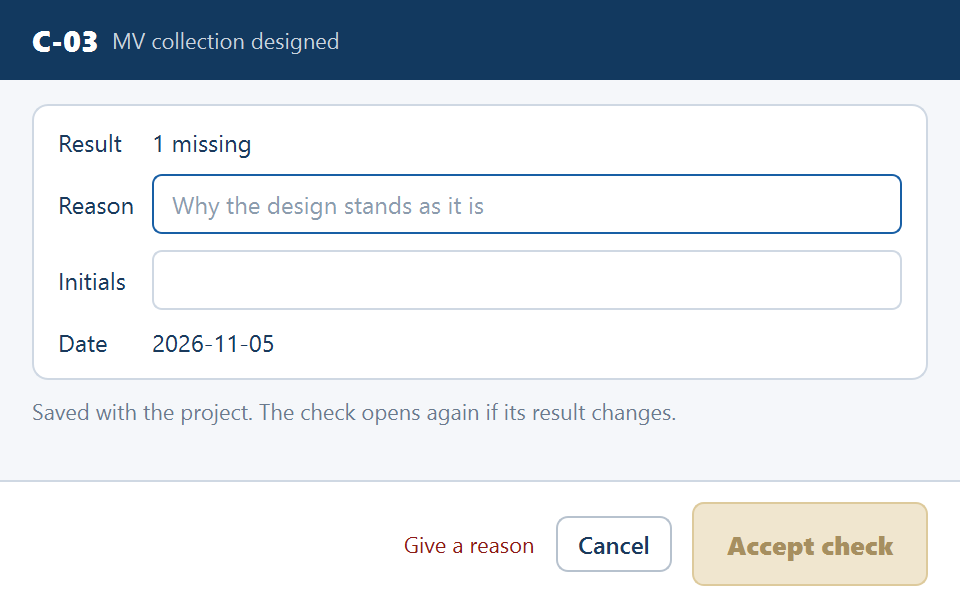
Click Accept… on the row
The window is titled for the check, for example "Accept E-05", and shows the Result.
Give a reason and your initials
Reason is required ("Why the design stands as it is"); until it is filled the button is disabled with "Give a reason". Initials starts from the company's. Date is today and can't be changed.
Click Accept check
The row moves to the accepted group, with a line such as "Accepted by AP on 2026-11-05: by hand" and a Withdraw button. The acceptance is saved with the project.
An accepted check leaves the chip's count, the Summary line, the badges and the remarks in the BOM view.
An acceptance holds for one result. The application keeps a fingerprint of the status, the value, the limit and the objects affected. If any of them changes, the check moves to to re-confirm, with an exclamation mark and the line "The result changed since AP accepted it on 2026-11-05: …". Confirm… opens the same window with your reason and initials filled in, and its button reads Confirm check; Withdraw drops the acceptance.
The two checks done by hand
Two engineering checks always read can't check, because the application does not perform them. Do them yourself, then accept each with your result as the reason.
| Check | What the row says |
|---|---|
| E-04 String voltage window | "Not checked in this version: check the string length against the inverter's DC voltage window (cold Voc, hot Vmp) by hand." |
| E-05 Shading window | "Not checked in this version: check the row pitch against the shading window by hand." |
Badges on the plot
The Checks row of Layers ▾ (under Site & analysis, off by default) marks each object an open check touches with the check's ID.
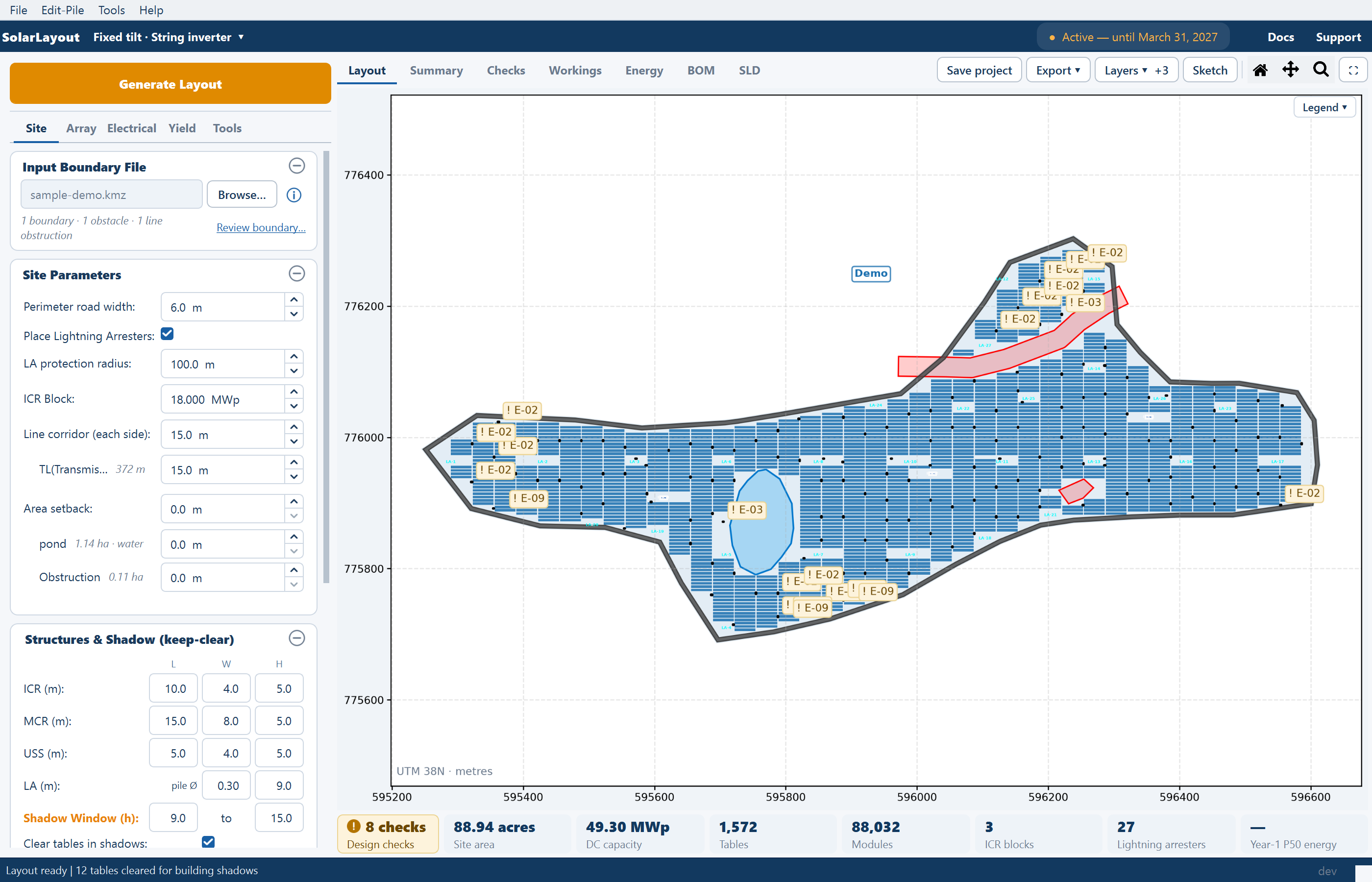
- One badge per place, "! E-02"; several checks at one place stack, "! E-02 · E-06".
- More than 12 objects of one kind in one block for one check share a single badge at the block's ICR, "! E-09 · 340 tables".
- A badge keeps its size at any zoom. Badges hide with Plant layout off and in the SLD view.
- E-07's badges sit on the drawn feeders and trunks that leave the boundary or cross a table, so their number can differ from the count on the row.
The chip and the Summary line
The two count different things.
| Where | What it counts | Example |
|---|---|---|
| Design checks chip, under every view | Every check open or to re-confirm, can't-check rows included | 15 checks |
| The line above the Summary sheet | Every failed check open or to re-confirm, completeness and reconciliation included. Can't-check and accepted rows are left out | "6 design checks failed", then the first three by ID and title and "and 3 more", with Open Checks |
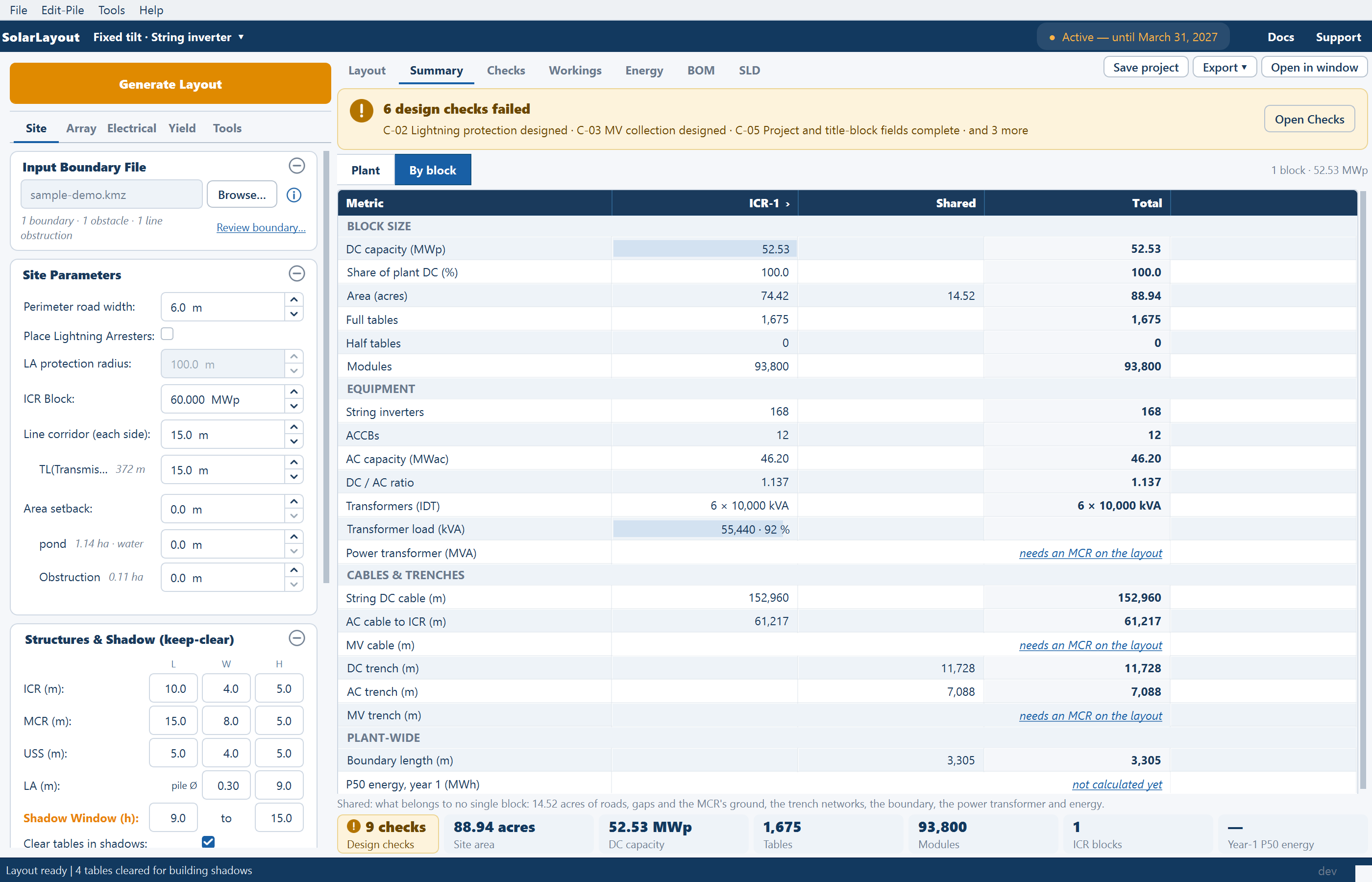
A layout with company details, a pile pattern or datasheets still to come shows failed completeness checks for them; that says what is left to add, not that the plant is badly laid out.
While the layout is out of date
An input change does not clear the report. It stays on screen, and changing a limit still re-runs the checks at once. It is hidden only while the plant is being rewritten: the badges go off, the Summary line hides and the BOM view's remarks are held until the next report lands. See Out-of-date results.
Where the results go
- The BOM view shows "Check: E-06 · <sentence>" on the lines a failed check concerns, in the item's tooltip and in the line inspector. It never changes a quantity. See Bill of materials.
- The Export deliverables window lists the checks beside the package.
- No exported file carries a check. The package has no check table, no check decides whether you can issue, and the BOM's files carry no remarks. The design report prints the limits and settings the design used, not the results. See The design report.