BOM profiles
A profile holds the items, specifications, makes and allowances a BOM starts from. How to create, import, share and choose one, and save edits into it.
A BOM profile is the list of entries a bill of materials can draw on, with the specification, makes, allowance and counting rule of each. The design decides which entries apply and how many of each. The profile decides what they are called and how they are specified.
Use your own profile to carry your company's approved makes, allowances and specifications from project to project, rather than entering them on every BOM.
Three layers
| Kind | What it is |
|---|---|
| Built-in | SolarLayout standard. It ships with the application, covers every design type and can't be changed |
| Company | Extends the built-in profile and holds only its own changes |
| Client | Extends a company profile and holds only its own changes |
A profile lists what it changes and adds, so an empty one behaves exactly like the profile beneath it.
Profiles are kept on this computer, in the folder SolarLayout_BOM_Profiles in your
user folder, each as a .bom-profile.json file. A project keeps a copy of the
profile as it used it, so it opens the same way on a computer that does not have
that profile.
The Profiles window
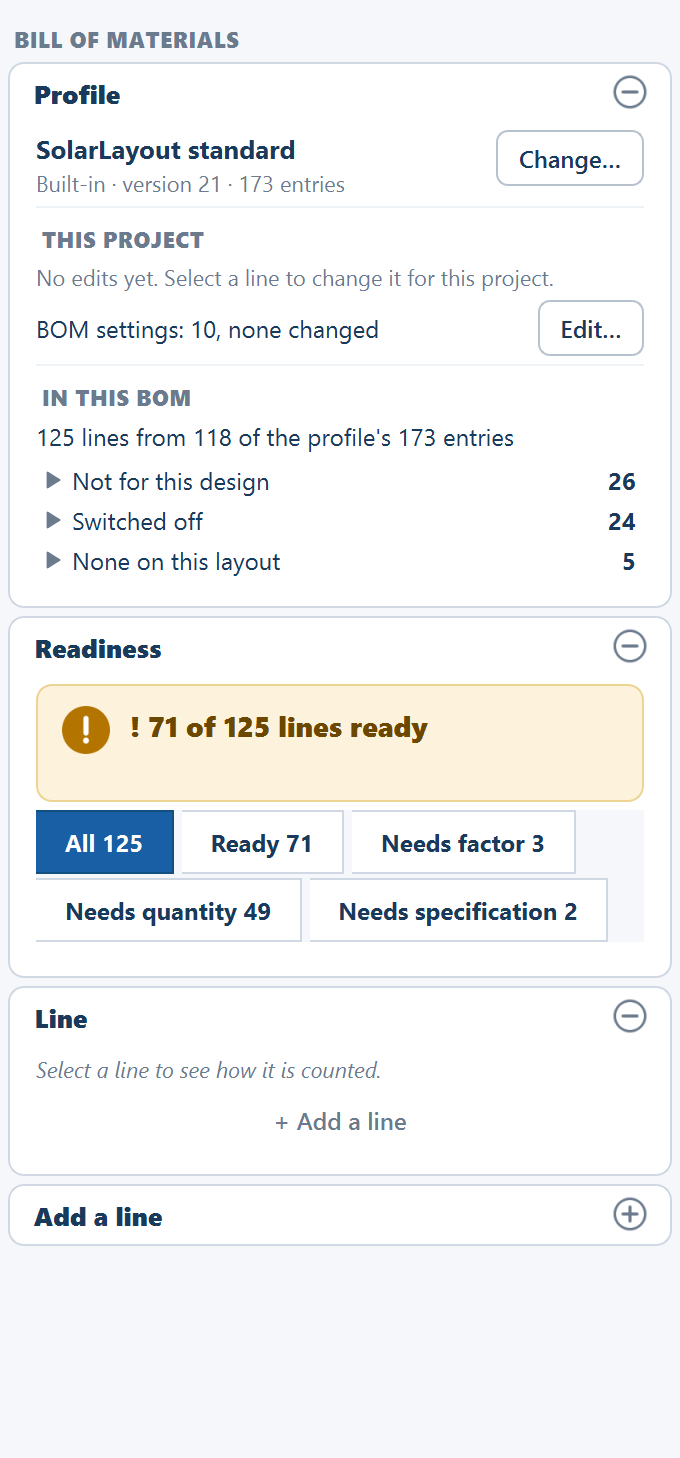
Click Change… on the Profile card, in the BOM view.
The strip across the top says what This project uses and what New projects use, with the number of profiles on this computer.
On the left is the list, grouped under BUILT-IN, COMPANY and CLIENT. Each row gives the version, and "default for new projects" where that applies, or "can't be loaded" if the file can't be read. New…, Duplicate and Import… sit under it.
On the right is the profile you selected:
- Its version, and either "ships with the app" or the date it was saved and the profile it extends.
- Three tiles: entries changed, entries added and own item types. On the built-in profile they read entries, item types and extends.
- A table of Entry and What it changes.
- Use for new projects, Export… and Delete.
Use a profile
Select it in the list
The right side shows what it changes.
Click Use <name> for this project
The button is greyed out with "This project already uses it" when that is so. The status bar confirms, as in "Using Acme standard v3 for this project".
Your decisions stay when you change profile. Edits on an entry follow it to the new profile, and edits on a line follow that same line. An edit whose entry isn't in the new profile goes to the No longer in the design card. A project keeps the copy of its profile until you change it.
Tick Use for new projects to make a profile the default on this computer.
When a project uses a company or client profile and a newer version is on this computer, the Profile card shows "Version <v> is on this machine" and a button, Update to v<v>. The project stays on its copy until you click it.
Create a profile
Select the profile to build on
Select the built-in profile for a company profile, or a company profile for a client one.
Click New…
Enter a Name. Extends shows the profile you selected.
Click Create
The profile starts empty: "An empty profile over the selected one: it changes nothing until edits are saved into it."
Create gives its reason when it can't go ahead: "Give the profile a name", "A profile called <name> already exists.", or "Use at least one letter or digit (A–Z, 0–9) in the name."
Duplicate does the same from an existing profile, under a new name, with a copy of its changes to entries, its added entries and its own item types. The built-in profile changes nothing, so its copy starts empty.
Save this project's edits into a profile
A profile fills up from real work. Edit a project's BOM until it is right, then keep what is reusable.
Click Save as profile…
It is on the Profile card, under THIS PROJECT, when at least one edit can go into a profile.
Choose where it goes
Under SAVE TO, choose A new profile and name it, or An existing profile. An existing profile goes up one version when you save into it.
Tick the edits to keep
EDITS TO KEEP lists each edit with its Entry, Edit and Value. Saving to an existing profile adds In the profile now, for comparison. Select all and Select none are above the table.
Click the button that names the save
It reads, for example, Save 5 edits to Acme standard. The project itself does not change.
What a profile can keep
| Edit | Goes into a profile |
|---|---|
| Makes, allowance, factor, specification, remarks | Yes |
| An entry turned off | Yes |
| An added entry, together with its item type | Yes |
| BOM settings | Yes |
| A manual quantity | No: "manual quantities belong to this site" |
| An edit on one size only | No: "set for one size of this design only" |
| An edit on an entry the target lacks | No: "<target> has no <entry>" |
Edits that can't go are listed under the fold Stay with this project, with those reasons, and stay on the project.
Share a profile
Select a profile and click Export… to write it as <name>.bom-profile.json. The
built-in profile is part of the application and doesn't export; duplicate it to export
a copy. Exporting a profile doesn't need active access.
To bring one in, click Import… and choose the file. The window previews what it changes, showing the first eight changes and a count of the rest, and nothing is added until you click Import <name>.
If the profile it extends has moved on here, the preview says so, as in "It extends Acme standard v2; you have v3. It will extend your v3." It also says when some of its changes override a change in your version.
| The window says | What to do |
|---|---|
| "It isn't a profile file." | Choose a .bom-profile.json file |
| "The built-in profile is part of the app and can't be imported." | Nothing is needed: the built-in profile is already here |
| "<name> v<a> is already here; the file is v<b>." | A version of this profile is already on this computer, so nothing is imported |
| "It extends <id>, which isn't on this machine. Import that first." | Import the profile it extends, then this one |
Delete a profile
Select it and click Delete. This removes the file from this computer, so export the profile first if you may want it again. Projects that used it keep their own copy.
Delete is greyed out on the built-in profile, and on a profile another extends: "<child> extends it. Delete that first."
Where to go next
Bill of materials
The BOM view counts a procurement list from the layout through a profile. How to read it, fill what is open, edit a line and export it.
Line reference
Every entry in the built-in BOM profile, by category, with its unit, how it is counted and when it applies, and what feeds the quantities.