Deleting projects
How to delete a SolarLayout project, what gets removed, and how to recover from a deletion.
Deleting a project removes it from your SolarLayout account along with every layout you've generated inside it. The action is irreversible from inside the app, so SolarLayout asks you to confirm in a dialog before anything is removed.
Two places to delete from
You can start a delete two ways:
- From the Projects list — click the ⋯ menu on a project row and choose Delete.
- From the project's Settings page — open the ⋯ menu on the row and choose Settings, then scroll to the Danger Zone at the bottom and delete it there.
Either way, the same confirmation dialog appears.
The confirmation dialog
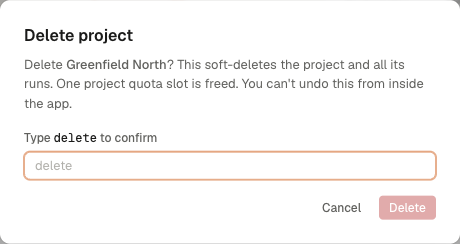
The dialog is titled Delete project. It spells out exactly what's about to happen — the project name and the fact that the project and all its runs go with it (the UI calls each generated layout a run), that one project quota slot is freed, and that you can't undo this from inside the app.
To guard against an accidental click, the Delete button stays
disabled until you type delete into the box. Only once you've
typed it does the destructive Delete button turn on. Cancel sits on the
left, Delete on the right.
Press Cancel or click outside the dialog at any time to back out;
nothing changes until you've typed delete and clicked Delete.
What deleting removes
When the delete completes:
- The project disappears from your Projects list.
- Every layout you generated inside the project is removed too.
What deleting does not touch
- Your SolarLayout account — your sign-in, hardware library, and other projects are untouched.
- The original KMZ file on your own computer — the file you imported is yours; SolarLayout never modifies or deletes it.
- Files you've already exported — PDFs, KMZs, DXFs, and CSVs your browser has already downloaded stay where you put them.
Before you delete — export first
If you might need a layout or its results later, export before deleting. Once the project is gone, the layouts go with it and there is no way to recover them from inside SolarLayout.
The most useful exports to take before deleting:
- PDF report — the layout's overview, capacity numbers, and an energy summary in a readable form.
- KMZ — the boundary, plots, panel tables, and ICR positions, ready to open in Google Earth.
- 15-minute CSV — the time-stepped energy yield series if you need to model further downstream.
See the Exports section for the format and contents of each.
Recovering a deleted project
There's no undo button inside SolarLayout. Once you confirm a delete, the project is gone from the app.
If you need a deleted project back, your options are:
- Contact support — Dashboard → Support, or email hello@solarlayout.app — within a reasonable window of the deletion. Projects are soft-deleted in our database, so support can sometimes restore one on request — but don't rely on this as a routine workflow.
- If you exported a KMZ before deleting, re-create the project from the KMZ. Plant parameters and historical layouts won't come back, but the boundary and the most-recent layout's structure are reconstructible from the KMZ.
The practical lesson: export the PDF and KMZ from any layout you might want to refer to later, before you delete the project.