Roles & members
What admins and members can each do, transferring ownership, and what happens when someone leaves a team.
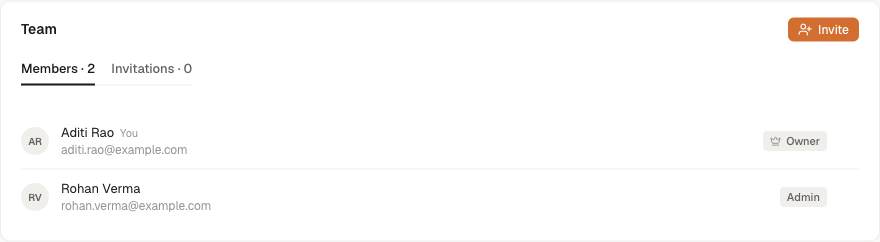
A team workspace has two roles — Admin and Member — plus one person who is the owner. Roles control who manages the team; they don't gate the engineering work. Members design layouts with everything their plan allows, same as admins.
What each role can do
| Member | Admin | Owner | |
|---|---|---|---|
| Work on team projects (create, generate, export) | ✓ | ✓ | ✓ |
Upload .PAN / .OND files for the team | ✓ | ✓ | ✓ |
| Invite people, withdraw invitations | ✓ | ✓ | |
| Change a member's role | ✓ | ✓ | |
| Remove a member | ✓ | ✓ | |
| Rename the workspace | ✓ | ✓ | |
| Transfer ownership | ✓ | ||
| Delete the workspace | ✓ |
The owner is the person who created the workspace (or whoever it was later transferred to). There's exactly one owner at a time.
The workspace carries the plan — billing is per workspace, and the plan's included seats cover the team. The team shares projects, not a pooled calculation balance. Members design layouts with everything the workspace's plan allows.
Changing roles and transferring ownership
Admins change a member's role from the Team section on the Workspaces page: open the Members tab, open the "…" menu on the member's row, and choose Change role. Promoting a trusted colleague to Admin lets them handle invitations while you're heads-down on a bid.
Ownership transfer is the owner's move alone — hand the workspace to another member (they become the owner; you stay on as an admin). Useful when the person who set the team up isn't the one who'll run it long-term.
Leaving a team
Any member can leave a team workspace from the Workspaces page: in the Team section's Members tab, open the "…" menu on your own row and choose Leave workspace. Leaving switches you back to your personal workspace, and your personal projects are exactly as you left them. Your personal workspace keeps its own plan — a subscription is tied to a workspace, not to your account.
Your team work stays with the team. Projects you created in the team workspace, layouts you generated there, hardware files you uploaded for the team — all of it remains in the workspace, because the team's bid shouldn't break when one person moves on. The same applies when an admin removes a member.
Removing a member
Admins remove members from the Team section's Members tab: open the "…" menu on the member's row and choose Remove from workspace. Removal takes effect immediately: the person loses access to the team's projects and files, and keeps their own personal workspace (with its own plan).
Removing someone isn't a one-way door — if they're needed again next tender season, invite them again and they're back, with the team's work just as they left it.
Common issues
- You can't leave a workspace you own. Transfer ownership to another member first, then leave — or delete the workspace if the team is winding down.
- Someone left and their projects "disappeared" for them. Working as intended — the projects belong to the workspace, not the person. They're still there for the rest of the team, and the member can be re-invited to regain access.