Install on Windows
Install BESS Desktop from the Microsoft Store, then launch it for the first time.
BESS Desktop is a Windows application, installed from the Microsoft Store. That is the route these pages document: open the Store on the application's listing, install it, launch it.
If you are not sure whether your PC has the Store, start at the download page, solarlayout.app/downloads/bess. It asks one question about your PC and takes you to the right place.
Installation does not need this device activated. The application opens straight into its main window — every input tab is there to read and change. Activation is only asked for when you run ▶ Simulate, ⚙ Optimise, or export something.
Publisher and platform
The listing is published by Rensaar. Check the publisher name on the listing page before you install — it is what tells you you are looking at the right application rather than a similarly named one.
BESS Desktop ships for Windows.
Find the listing
The download page's Get it from the Microsoft Store button opens the Store on the listing directly. Or open the Store yourself and search:
Open the Microsoft Store
Press Start, type Microsoft Store, and open it.
Search for BESS Desktop
Type the application name into the Store's search box.
Check the publisher reads Rensaar
The publisher name sits under the application name on the listing page, alongside the install button.
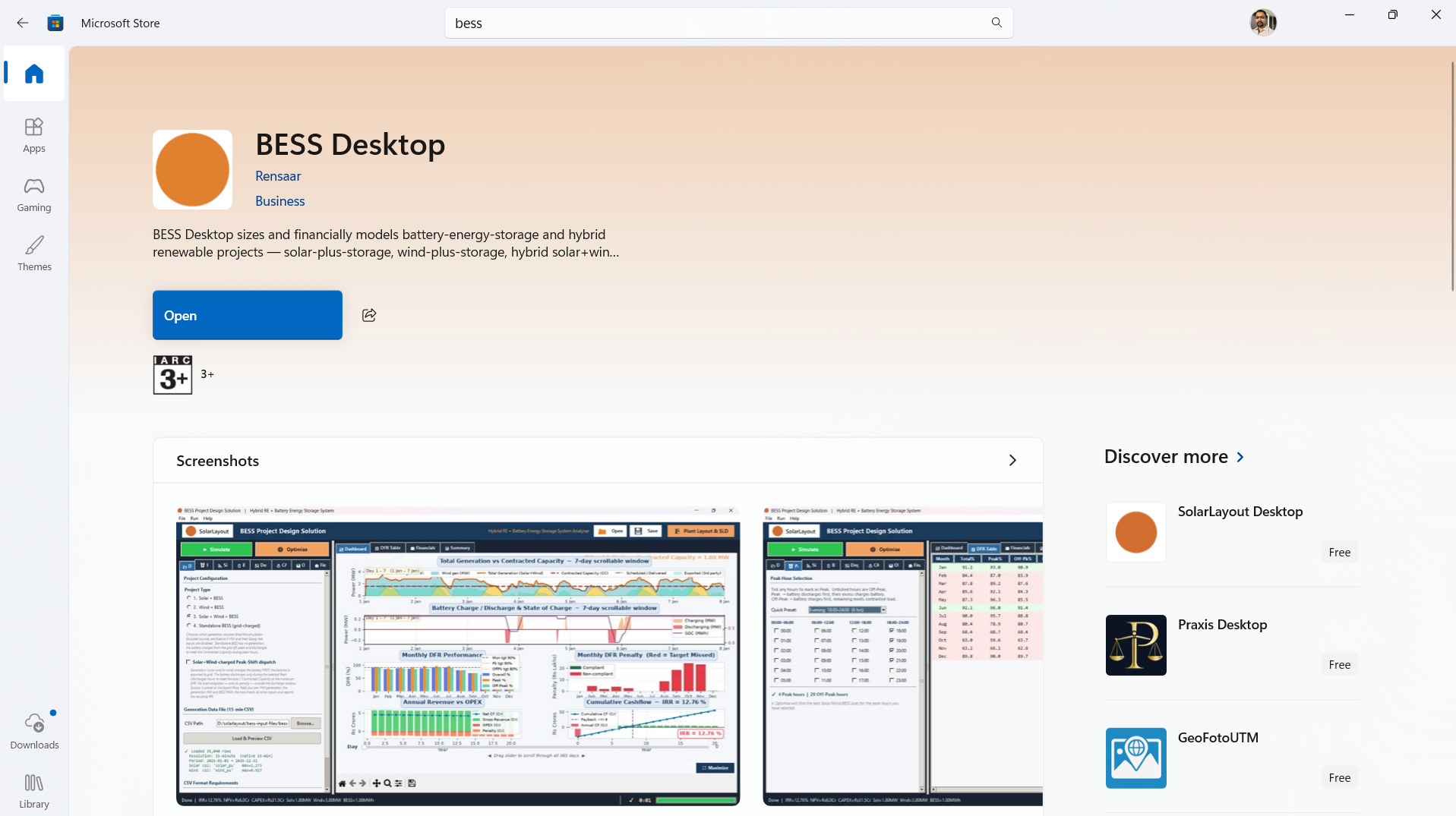
Install it
Click Get or Install. The Store downloads and installs the application; there are no options to choose along the way.
When it finishes, the button on the listing changes to Open.
Launch it
Use Open on the listing, or find the application in the Start menu — press Start and type the first few letters of its name.
The first launch
BESS Desktop does not show a start-up window and does not check whether this device is activated before opening. The main window appears directly: the left input notebook holds the eight input tabs, and the four result tabs fill in once a run finishes.
The window opens at 1600×900 and starts maximised.
▶ Simulate, ⚙ Optimise, and every export need this device activated. Everything else — reading and changing every input, saving or opening a project, loading a generation profile, and the 🏗 Plant Layout & SLD designer — works before that.
The header banner also shows an access-status chip at all times — for example ● Active — until <date>, or ● No active access with a Get Free Access button beside it — so you don't need to open the License window just to check. A Docs button next to Support opens this documentation, and the app version now shows in the bottom status bar.
Help ▸ License… opens the window that shows this device's activation status and Device ID. See Getting started for what activation involves and a full tour of the main window.