Updates and reinstalling
How Microsoft Store updates arrive, checking for one by hand, and why access survives an update or reinstall.
Updates arrive through the Microsoft Store. Microsoft delivers them, so there is nothing to download and nothing to run by hand.
Access to run an analysis is not stored as a file the application keeps. It is tied to this device, checked against SolarLayout's server, so replacing the application — an update or a full reinstall — does not disturb it.
How updates arrive
Windows checks the Store for updates on its own schedule and installs them. An update may wait until the application is closed, so close it if one appears to be stuck.
A copy that did not come from the Store receives no Store updates. The download page, solarlayout.app/downloads/bess, always carries the current version.
Check for an update by hand
Open the Microsoft Store
Press Start, type Microsoft Store, and open it.
Open the Library
It is in the left-hand navigation. The Library lists the applications installed on this machine and any updates waiting for them.
Click Get updates
The Store checks every installed application at once and downloads whatever is pending. If BESS Desktop is already current it is not listed as needing anything.
Access is tied to this device, not a file
There is no local licence file to lose, back up, or move. Entitlement is checked against SolarLayout's server for this device's Device ID — a Windows machine identifier, the same one Windows itself shows under Settings ▸ System ▸ About. Updating or reinstalling the application changes neither that identifier nor the server-side record it is checked against, so a launch after either one shows the same activation status as before.
A chip in the header banner always shows this at a glance — ● Active — until <date> when active, ● No active access with a Get Free Access button when not, ● Access expired or ● Access revoked with a Contact Us button otherwise — so checking status no longer requires opening a window.
Help ▸ License… opens the window that shows it: a read-only field labelled Your Device ID (identifies this computer to SolarLayout:), with a Copy button beside it, and a headline that reads ✓ Active, ✗ No access, or — right after requesting access — ⏳ Waiting for activation. Refresh re-checks the server immediately, so a status change on the server side shows up without waiting.
Only ▶ Simulate, ⚙ Optimise, and exporting need this device activated. Reading and changing inputs, saving or opening a project, and the 🏗 Plant Layout & SLD designer all work regardless of activation status.
Reinstalling
Worth trying if the application will not start at all, or misbehaves in a way that survives a restart.
Remove the application
Uninstall it the way you remove any Store application: from its entry in the Start menu, or from the installed-applications list in Windows Settings.
Install it again from the Store
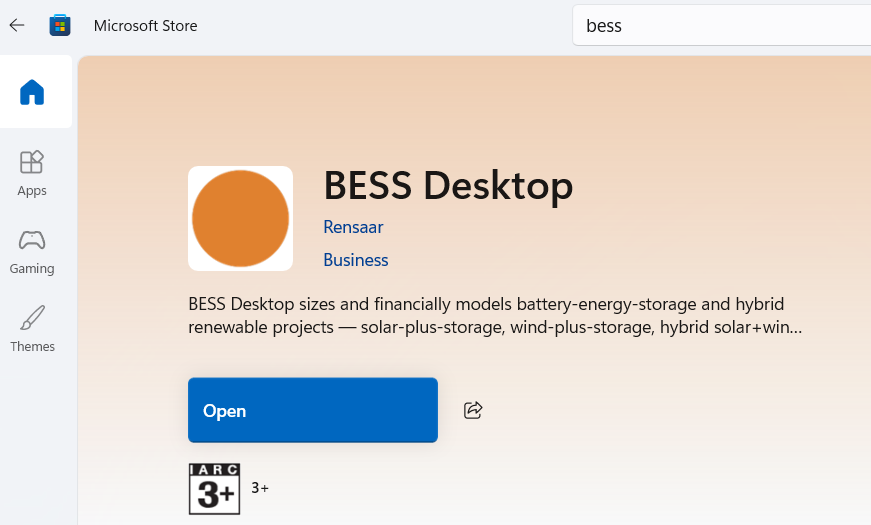
Follow Install on Windows — open the Store, search for the application, check the publisher reads Rensaar, and install.
Launch it and check access
The main window opens directly, the same as any launch. Open Help ▸ License… to confirm the status still reads ✓ Active — it is checked against the server by Device ID, not restored from anything the previous installation left behind.
Uninstalling
Removing the application removes the application. It does not remove:
- Project files (
.slb) — wherever you saved them. - Exported reports and drawings — the PDF, Word, text, CSV and plant drawing files you exported — wherever you saved them.
A different machine has its own Device ID, so it needs its own activation — moving to a new PC is not covered by this device's access. Open Help ▸ License… on the new machine and use Get Free Access there. If access has expired or been revoked instead, contact SolarLayout at sales@solarlayout.app.